


Product images and galleries are used to showcase your products to customers. Images build customer confidence, make the product presentation visually appealing, and help to drive sales by enticing visitors in external locations like search engines and social media where the images are displayed.
On this page you’ll learn:
- About the different types of WooCommerce images.
- How to add product images and galleries.
- Where to find product image size settings.
- How to add, reorder, and remove images and videos from Product Galleries.
Types of product images
Image dimensions are measured in pixels, width first: an 800 x 800 pixel image is 800 pixels wide and 800 pixels tall.
WooCommerce uses three types of product images for different locations and purposes:
- Single Product Image – the largest image and refers to the main or featured image on your individual product details page.
- Catalog Images – medium-sized images appearing in product loops, such as the Shop page, Product Category pages, Related Products, Up-sells, and Cross-sells.
- Product thumbnails – the smallest images used in the Cart, Widgets, and (optional) Gallery thumbnails underneath the Single Product Image.
Recommended size: upload images that are at least 800 x 800 pixels. This size renders well as the single product image, catalog image, and thumbnail, and larger images are better for products with fine detail. Smaller images work, but they are a key sales tool, so use the highest quality you have. WooCommerce generates the display sizes for you; if your images look blurry or soft on the storefront, see Fixing blurry product images.
Adding Product Images and Galleries
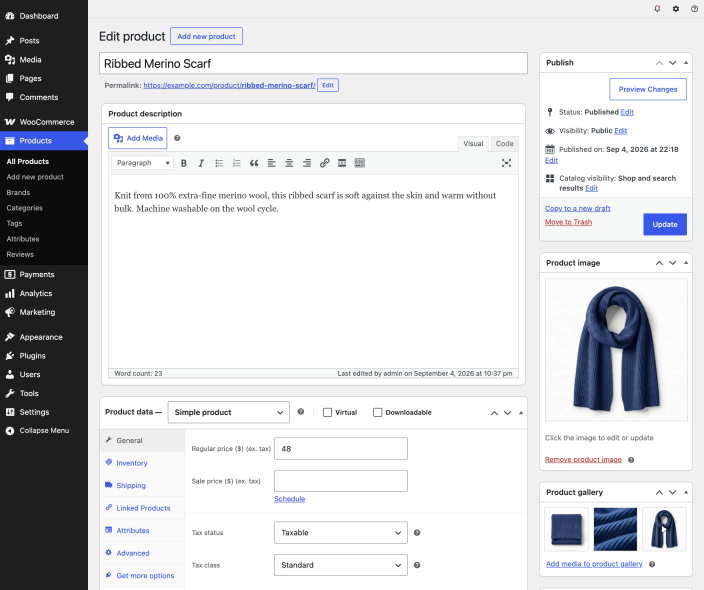
Adding product images and galleries are options available on the right-hand side when adding or editing a product in your store from WooCommerce > Products.
Product Images settings in the Customizer
You can change the single product image width, thumbnail width, and thumbnail cropping in Appearance > Customize > WooCommerce > Product Images. See Product Image settings in the Customizer for what each option changes.
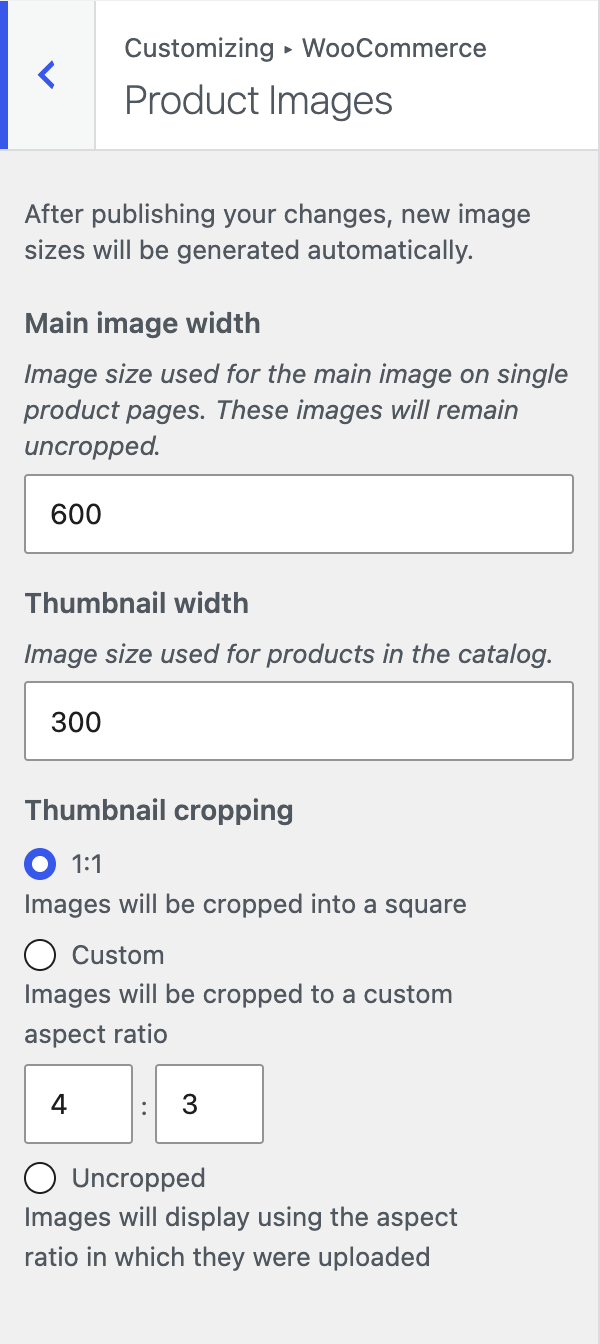
If the Product Images section is missing from the Customizer, one of two things is true: your theme sets its own image sizes, so the options are hidden, or your site uses a block theme, which hides the Customize menu. With a block theme, open the Customizer directly at yourdomain.com/wp-admin/customize.php. Theme developers can set or unset image sizes in the theme itself; see Declaring WooCommerce support in the classic theme handbook.
Scope of support:
We are unable to provide support for customizations under our Support Policy. If you need to customize a snippet or extend its functionality, we recommend working with a Woo Agency Partner or a WooCommerce developer on Codeable.
Product image
The Product Image is the main image for your product and is reused in different sizes across your store.
Select Set product image.
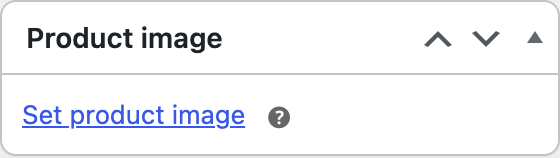
Select an existing image in your Media Library or Upload a new one.
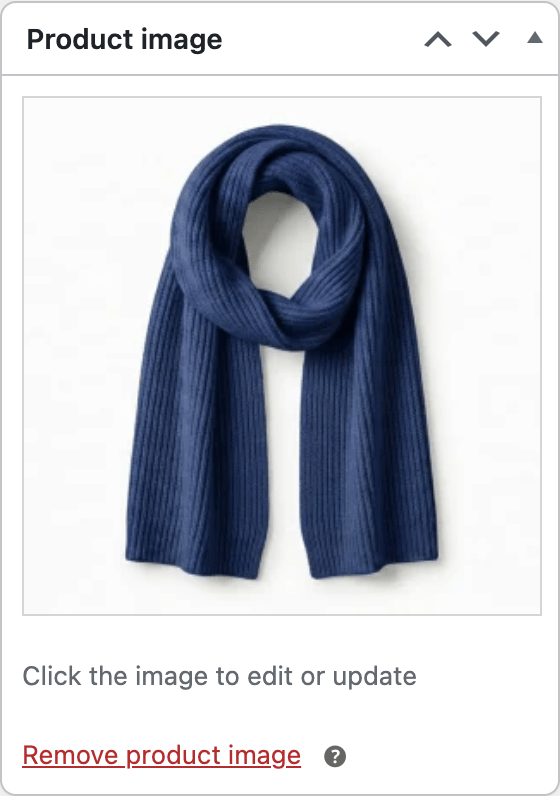
Remove and Edit the product image if you’d like to change it, as needed.
Adding, removing and editing a product image is done in the same way as featured images for posts and pages.
Product Galleries
Add images to the Product Gallery
Product galleries display all images attached to a product through the Product gallery box on the product edit screen.
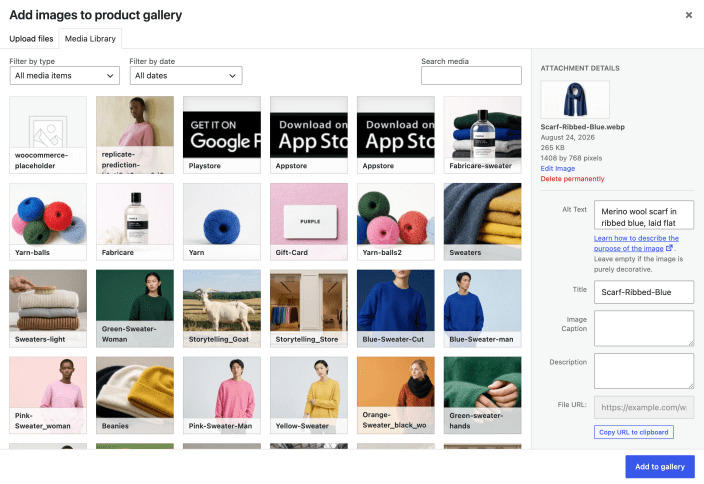
To build a gallery, select Add product gallery images in the Product gallery box, choose one or more images from your Media Library or upload new ones, then select Add to gallery.
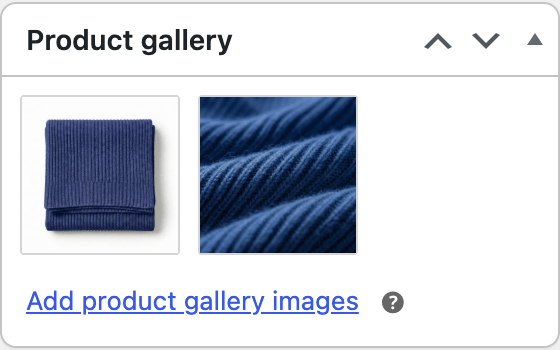
The Product Image is always the first item in the gallery on the product page, so you do not need to add it to the gallery again.
Reorder images in the product gallery
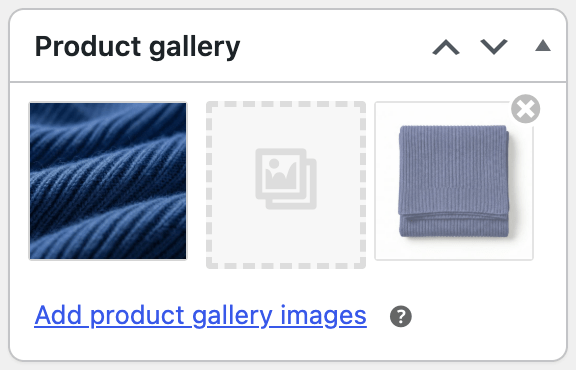
Images in the product gallery can be re-ordered easily via drag and drop. Simply reorder your images by moving them around.
Remove images from the product gallery
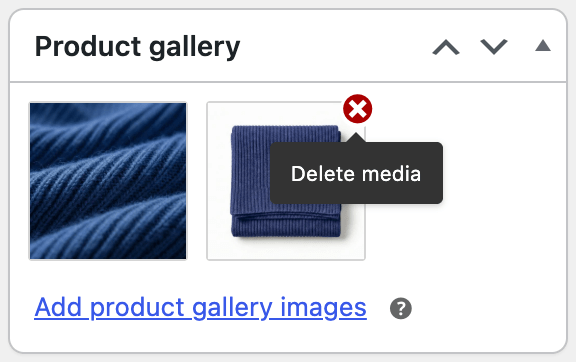
To remove an image from the product gallery, hover over the image and select the red X (Delete media). This removes the image from the gallery but keeps the file in your Media Library.
Add videos to the product gallery
Starting with WooCommerce 11.1, you can add videos to a product gallery alongside its images. Videos play automatically and silently in the gallery, so they work best for short clips that show the product in use, from different angles, or in motion.
This feature is in Beta and is turned off by default. Before you start:
- Upload the video first. Gallery videos come from your site’s Media Library. Embedded videos from YouTube, Vimeo, or other hosts are not supported.
- Use a web-friendly format. You can add any video type your site allows you to upload, but MP4 (H.264) plays in the widest range of browsers. Your hosting provider’s upload size limit applies.
- Keep an image as the Product Image. Videos can only be added to the product gallery, not set as the main product image.
- While the feature is in Beta, videos are not included in variation galleries, product CSV import and export, or the REST API.
To turn on product gallery videos:
- Go to WooCommerce > Settings > Advanced > Features and scroll to Experimental features.
- Check Product gallery videos.
- Select Save changes.

Once enabled, the link in the Product gallery box changes from Add product gallery images to Add media to product gallery.
To add a video:
- Open the product you want to edit, or add a new one.
- In the Product gallery box, select Add media to product gallery.
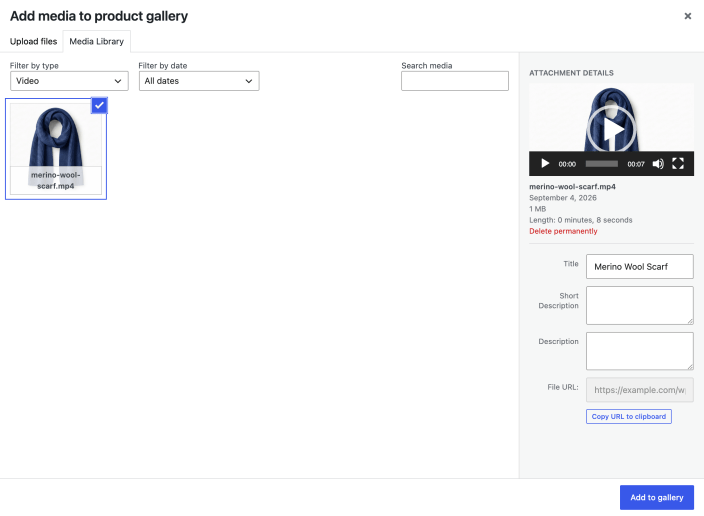
- In the Media Library, select the video and any images you want to add, then select Add to gallery.
- Select Update or Publish to save the product.
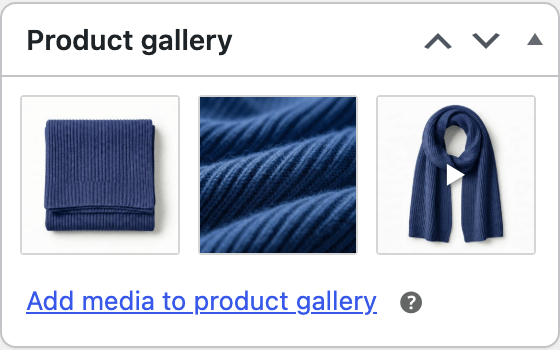
The video appears in the Product gallery box as a small preview, in the same list as your gallery images. Reorder it by dragging, or hover over it and select the red X to remove it from the gallery. Removing a video from the gallery keeps the file in your Media Library.
Set a poster image. WooCommerce uses the video’s featured image as its gallery thumbnail and shows it until the video is ready to play. To set one, go to Media > Library, open the video, select Edit more details, and set a Featured image. Give the poster alt text so screen readers can describe the video; without it, WooCommerce uses the video’s title, for example “Video: Backpack side pockets.” If the video has no poster, WooCommerce shows a preview generated from the video itself.
How shoppers see gallery videos. On the product page, a gallery video plays automatically, muted, and on loop, with no playback controls, so keep clips short and self-explanatory. Only the selected gallery item plays; the video pauses when the shopper moves to another image or video. Videos open in the lightbox like images. They are supported in the classic product gallery, the Product Image Gallery block, and the Product Gallery block. If your theme replaces the WooCommerce gallery templates with its own, videos may not appear until the theme adds support.
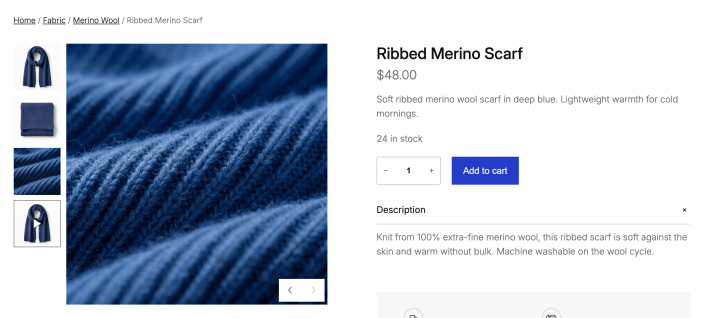
Turning the feature off hides gallery videos from the product page and the product editor but does not delete them. If you turn it back on, your videos return to the same positions in each gallery.
Customer view
Once a product image and gallery have been added, customers can see them in your store.
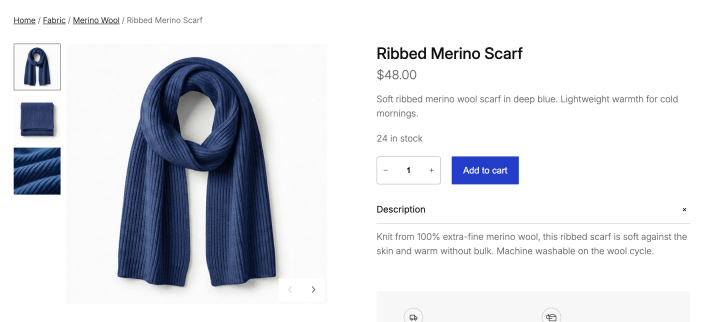
Zoom. When customers hover over the image, it zooms in where the cursor is, which helps show fine details. In the classic gallery this depends on your theme; in the Product Gallery block it is the Zoom while hovering setting, which is off by default.
Full-screen view. Customers can select the image (in the classic gallery, the magnifying glass icon) to open it full screen against a dark background and move through the gallery. In the Product Gallery block this is the Open pop-up when clicked setting.
Touch gestures also work on mobile.
In the classic product gallery, zoom, the full-screen view, and the slider are only available when your theme supports them. Storefront and most WooCommerce-compatible classic themes do. Block themes use the Product Gallery block instead, which has its own settings for zoom and the pop-up.
Turning zoom, the full-screen view, or the slider off in the classic gallery is a theme customization, not a WooCommerce setting. Your theme developer can remove support for each feature individually; see Product gallery features in the classic theme handbook.
Questions and support
Do you still have questions and need assistance?
This documentation is about the free, core WooCommerce plugin, for which support is provided in our community forums on WordPress.org. By searching this forum, you’ll often find that your question has been asked and answered before.
If you haven’t created a WordPress.org account to use the forums, here’s how.
- If you’re looking to extend the core functionality shown here, we recommend reviewing available extensions in the WooCommerce Marketplace.
- Need ongoing advanced support or a customization built for WooCommerce? Hire a Woo Agency Partner.
- Are you a developer building your own WooCommerce integration or extension? Check our Developer Resources.